
Turn an idea into a working web app

Describe what you want to build. Orin creates a React project you can edit, run, preview, and share in your browser.
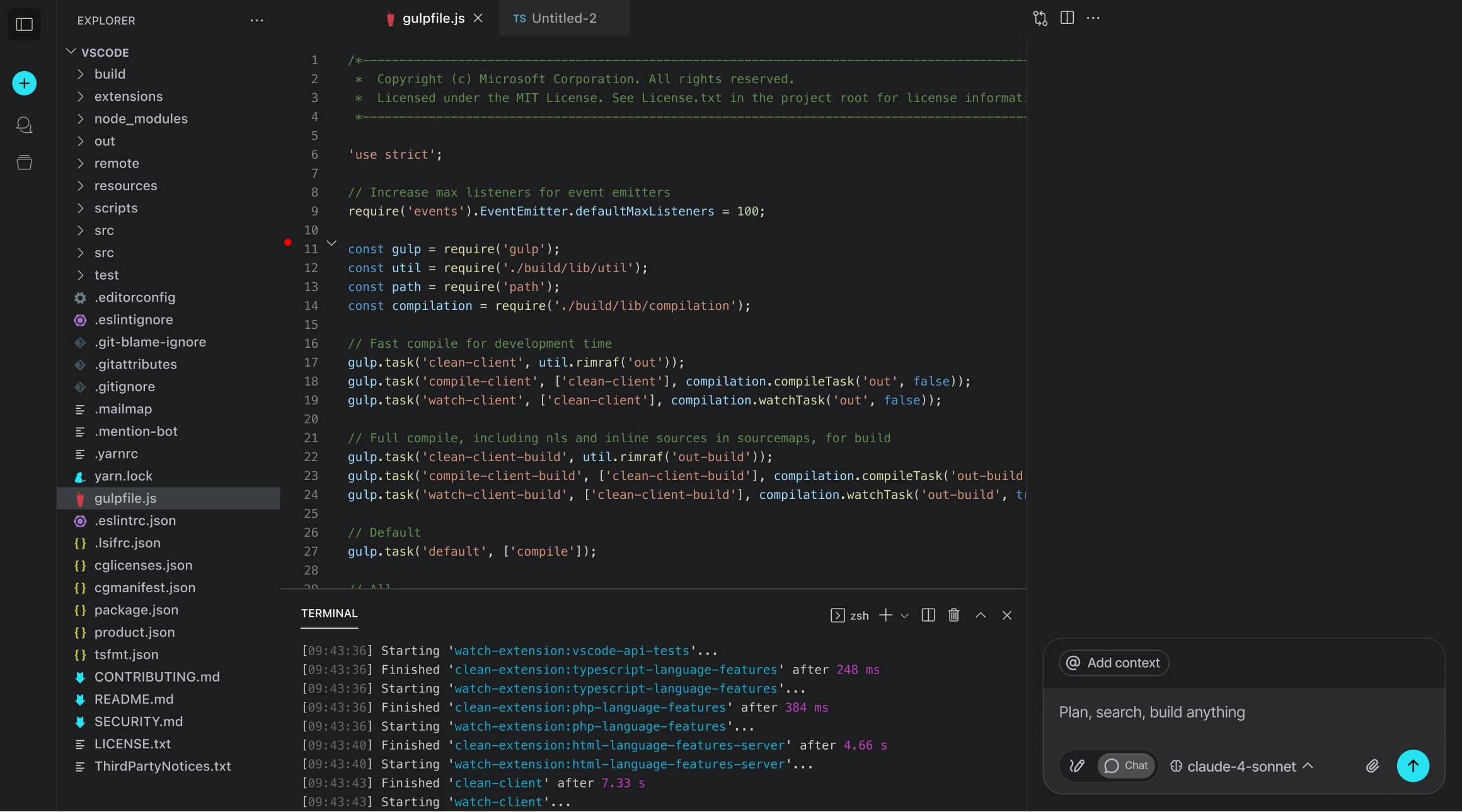
Orin workspace with a project editor, terminal, and live preview

From first prompt to shipped code

Every part of the build loop stays connected inside your Orin workspace.

Orin

Orin workspace

One connected build loop

Prompt

Describe it

Generate

Create the files

Edit

Shape the code

Preview

Watch it run

Ship

Export to GitHub

One workspace for the full build loop

Start with a prompt, edit the generated React app, run it in the browser, and share or export the result.

Connect your AI provider

Choose OpenAI, Anthropic, Gemini, Groq, OpenRouter, or a local LLM in Settings.

Generate the project

Orin turns your prompt into a React + Vite project and writes the files into a new workspace.

Shape it in the workspace

Ask for a UI change, Orin writes the file, and the live preview updates without leaving the editor.

Describe the change

Ask for a new screen, a bug fix, or a focused code change in plain language.

See the result live

Run the project in your browser and switch between code and a responsive preview as you iterate.

From prompt to running project

Ask, edit, run, preview, and share from the same workspace.
Here’s what actually happens inside Orin.

Describe what you want to build in the prompt launcher. Orin creates the starting project and opens it in a workspace.
Maya Chen avatar
Maya Chen
Prompt launcher
Open the generated files in the Explorer and edit them directly in the code editor. Save when the change is ready.
Jordan Ellis avatar
Jordan Ellis
Code editor
Ask Orin to add a feature or fix a bug. Its response can create, update, or delete files in the project.
Priya Nair avatar
Priya Nair
AI chat
Run your package scripts and commands in the built-in terminal. Dependency and file changes stay with the project.
Owen Brooks avatar
Owen Brooks
Terminal
Use the live preview to see each update as it lands, then switch between desktop, tablet, and mobile views.
Sofia Martinez avatar
Sofia Martinez
Live preview
Open the same room with a teammate, chat in the workspace, and keep code changes synchronized as you work.
Ethan Williams avatar
Ethan Williams
Collaboration
When the project is ready, export it directly to GitHub. Your files and project structure leave the workspace with you.
Leila Hassan avatar
Leila Hassan
GitHub export

Questions about the workspace

A few details about projects, AI providers, rooms, and the browser-based development environment

What is Orin?
Orin is a browser-based AI coding workspace. Start or generate a React + Vite project, edit files, run commands, preview the app, and continue working in the same project room.
How does project generation work?
Enter a plain-language prompt from the landing page or workspace. After the project boots, Orin sends the prompt to your configured AI provider and applies the generated file changes to the project tree.
Which AI providers can I use?
Settings supports OpenAI, Anthropic, Google Gemini, Groq, OpenRouter, and a local OpenAI-compatible server such as Ollama. You can save a provider key and choose a model override.
Where are my projects saved?
Projects are saved through the Orin backend, with browser storage available as a fallback. The workspace keeps up to five recent projects, and you can reopen or delete them from the project home.
How do editing and live preview work?
The project runs in a browser-based WebContainer. Use the Explorer and code editor to change files, the terminal to run commands, and Preview to see the app with desktop, tablet, or mobile sizing.
Can I work with someone else?
Open the Peer tab inside a project room when the collaboration service is available. You can chat, share files, and connect with another person while the room keeps code changes synchronized.
Can I export a project to GitHub?
Yes. Use Export in the workspace, provide a GitHub Personal Access Token, and Orin will create a repository and upload the current project files.

Start with an idea. Leave with a project.

Describe a web app, open the workspace, and keep iterating in the editor, terminal, and live preview.

Open workspace